Operating instructions
Increase or reduce the size of the help section:
Press CTRL and the following simultaneously:
+ to zoom in
– to zoom out
Filter data in tables:
You will find the filter box at the top left of each table.

Type in the word to filter. By clicking on the blue clog wheels you can select if the word you are searching should feature at the start of the sentence or phrase or be contained in the search fields.
Sort data in tables:
Click on the column to arrange it in alphabetical order. If you wish to create other types of arrangement within the main sorting, hold down the Ctrl key and select the columns according to how you want the order to be set.
Example:
Table: Conductors
If you click on Code, the table will be arranged by conductor type. At that point, if you hold down the Ctrl key and click on the column Section mm2 each conductor type will be sorted by section.
Navigate through the table data:

Use the navigator in the top right-hand corner as follows:
 to go to the first row of the table
 to go to the previous row
 to go to the next row
 to go to the last row
 add or remove a selected row within the table.
Select and delete several rows simultaneously:
To select multiple rows, position the cursor on the small rectangle to the left of the first row and hold down the CTRL key. Then select the following rows.
Once the rows have been selected, click on the icon 
The application will then ask for confirmation.
Duplicate rows:
Select rows as described above.
Then click on
 The rows will appear as in the figure below:
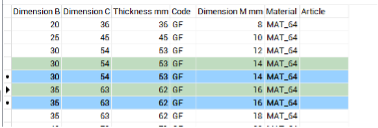
The newly duplicated rows will be highlighted in green to remind you that they need editing.
NB: Leaving the duplicated rows unedited will result in receiving an error warning when you press Update
Export data to Excel:
- Select the rows you wish to export and press

- Open Excel
- Position the cursor at the insertion point and paste
Import data from Excel:
- To import data selected for Excel select the data then press Copy
- Return to the application and click on

NB: The arrangement of the fields in the application must be identical to that of the spreadsheet you are copying from.
Confirm or cancel changes
To undo all changes press the Cancel button at the bottom left. To confirm all changes press the Update button at the bottom right.